The Ultimate Guide to Organizing PDFs — Merge, Split & Rearrange
Masterclass 10 min readLast Updated: Oct 2, 2026By SmartPDFs Pro Team
Introduction
In today's digital workplace, the Portable Document Format (PDF) is the undeniable king of document sharing. However, while creating a PDF is easy, modifying its structure after creation can feel like trying to untangle a knotted necklace. Do you have multiple PDFs that need to be combined into a single report? Or perhaps a massive 500-page eBook that needs to be split into manageable chapters?
If you have ever struggled with messy, disorganized files, you are not alone. Our comprehensive suite of PDF organization tools gives you complete, absolute control over your document structure. In this ultimate masterclass guide, we will break down exactly how to merge, split, extract, and visually arrange your documents using free, secure, browser-based tools.
What You Will Master
- How to seamlessly merge multiple distinct PDFs into one unified file.
- Advanced techniques for splitting large documents by custom page ranges.
- How to use the visual light-table to drag, drop, and rotate individual pages.
The Organization Toolkit Explained
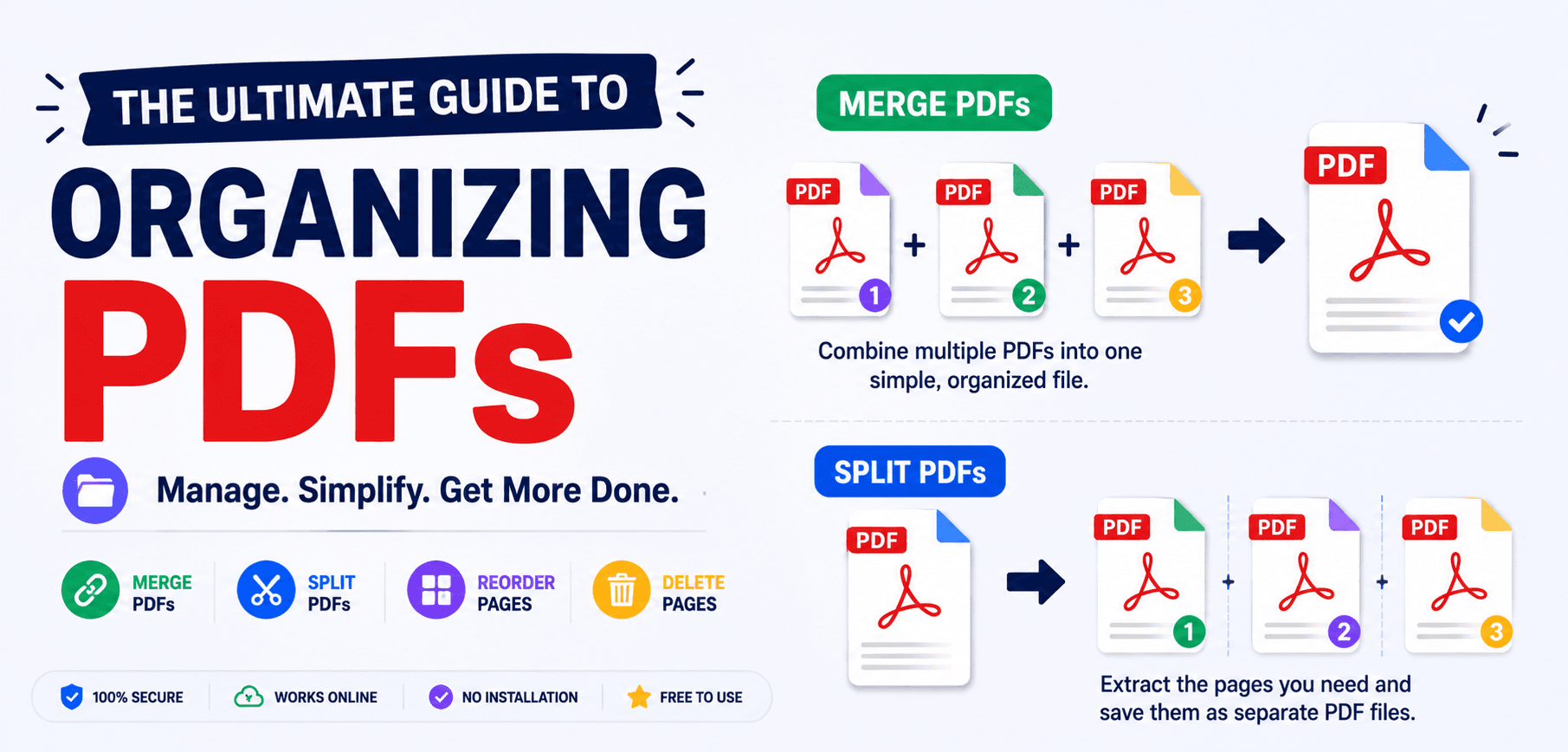
When we say "organize," we are referring to a family of specialized operations. Just like a physical office requires staplers, scissors, and filing cabinets, managing digital documents requires specific tools. Here is a breakdown of our organization toolkit:
Merge PDF
The digital stapler. Takes multiple separate PDF files and sequentially appends them into a single continuous document.
Split PDF
The digital scissors. Divides a single massive PDF into multiple smaller files based on fixed intervals or custom page ranges.
Organize PDF
The visual light-table. Displays all pages as thumbnails, allowing you to drag-and-drop to reorder, and click to rotate sideways scans.
Delete Pages
The digital shredder. Selectively permanently remove unwanted pages, such as accidental blank sheets or outdated cover letters.
Deep Dive: Merging Multiple PDFs
Merging is perhaps the most common task. Imagine you are applying for a job, and the portal only accepts a single file upload, but you have your cover letter, resume, and portfolio as three separate PDFs.
How to Merge Flawlessly
- Navigate to the Merge PDF tool.
- Upload all the files you wish to combine. You can select them all at once using Ctrl+Click (or Cmd+Click on Mac).
- Once uploaded, you will see the files listed horizontally. Crucial step: Drag the files left or right to establish the correct sequence. The file furthest to the left will be the first pages of your new document.
- Click "Merge PDF". The system utilizes lossless assembly, meaning it stitches the files together without degrading image quality or removing text searchability.
Pro Tip: Ensure that all PDFs are oriented correctly before merging. If one document is landscape and the rest are portrait, the final merged file will inherit those mixed orientations.
Deep Dive: Splitting and Extracting Pages
If merging is stapling, splitting is un-stapling. A frequent scenario involves receiving a 200-page employee handbook when you only need the 3-page section detailing the holiday schedule. Sending the entire 20MB file via email is inefficient; splitting it is the professional solution.
Mastering the Syntax of Page Ranges
When using the Split PDF tool or extracting pages, you will be prompted to enter a page range. Mastering this syntax unlocks immense power:
1, 4, 7Comma Separation
Extracts only those specific individual pages into a new, 3-page document.
10-15Hyphenated Range
Extracts a continuous block of pages. In this case, pages 10 through 15 inclusive (a 6-page document).
1, 5-10, 20Complex Combinations
You can freely mix commas and hyphens. This example extracts page 1, the block from 5 to 10, and page 20, merging them all into a new 8-page document.
Deep Dive: Visual Drag-and-Drop Organization
Sometimes typing numbers into a box isn't enough. When you scan a stack of paper, pages often get stuck together, fed upside down, or scanned out of order. For this chaotic reality, you need a visual approach.
The Organize PDF tool renders every single page of your document as a high-quality thumbnail image on a grid.
- To Reorder: Simply click and hold a thumbnail, then drag it to its new position. The other pages instantly reflow around it.
- To Rotate: Hover over any sideways page and click the circular arrow icon. Each click rotates the page 90 degrees clockwise. This is non-destructive and doesn't degrade the scanned image.
- To Delete: Spot a blank page? Hover and click the trash can icon. The page dims to indicate it will be removed upon export.
The Privacy and Speed Advantage of Local Processing
Historically, organizing a PDF online required uploading your sensitive financial documents or private contracts to a remote server, waiting in a queue, and then downloading the result.
SmartPDFs Pro uses bleeding-edge WebAssembly (Wasm) technology. When you click "Merge" or "Split", the actual computational logic is executed by your own device's CPU, inside the secure sandbox of your web browser.
Why This Matters:
- Zero Server Retention: Your files never leave your computer. We cannot read, store, or leak your documents because we literally never receive them.
- Instant Processing: You bypass upload and download speeds entirely. A 500MB file can be split in seconds because it relies on your local RAM, not an internet connection.
- No File Size Limits: Cloud providers charge money for server time, which is why they limit you to 10MB or 2 files per day. We have no such overhead, so you face no arbitrary limits.
Frequently Asked Questions
Will organizing my PDF reduce its quality?
No. All our organization tools (merging, splitting, deleting) perform structural editing. They manipulate the document's internal cross-reference table without re-encoding the actual images or vector text. Quality is 100% preserved.
Can I organize a password-protected PDF?
The PDF specification encrypts the entire file structure. You cannot organize or split a locked PDF until you provide the password to decrypt it. Our tools will securely prompt you for the password if a locked file is detected.
Is there a limit to how many files I can merge?
Because the processing happens locally in your browser's memory, there are no hard limits. However, merging hundreds of extremely large files simultaneously may cause your browser tab to crash if your device runs out of available RAM.
Do these tools work on iOS and Android?
Yes. The entire suite is built with responsive web design. The visual drag-and-drop organizer supports touch events natively, allowing you to reorder pages seamlessly on an iPad or smartphone.
Common Mistakes to Avoid When Organizing PDFs
Even with powerful tools, it is easy to make a mistake when handling complex documents. Watch out for these common pitfalls:
- Forgetting to Save a Backup: Always keep a copy of your original, untouched PDFs just in case you make a mistake during the merging or splitting process.
- Ignoring File Size: Merging dozens of high-quality image PDFs can create a massive file that is difficult to share. Remember to compress the final document if needed.
- Mismatched Page Sizes: Combining a US Letter size document with an A4 document can lead to awkward printing. Try to standardize your page sizes before merging.
Related Articles
Merge vs Split PDF: When to Use Each Tool
Confused about PDF document management? Learn the exact differences between Merge vs Split PDF tools.
Read ArticleHow to Merge Multiple PDFs into One File
Learn how to easily merge, combine, and organize multiple PDF files into one single document for free.
Read ArticleReady to take control of your documents?
Merge, split, extract, and visually rearrange your PDF files with zero uploads and perfect privacy.