How to Merge Multiple PDFs into One File (Free & Easy)
Organize 5 min readLast Updated: Oct 2, 2026By SmartPDFs Pro Team
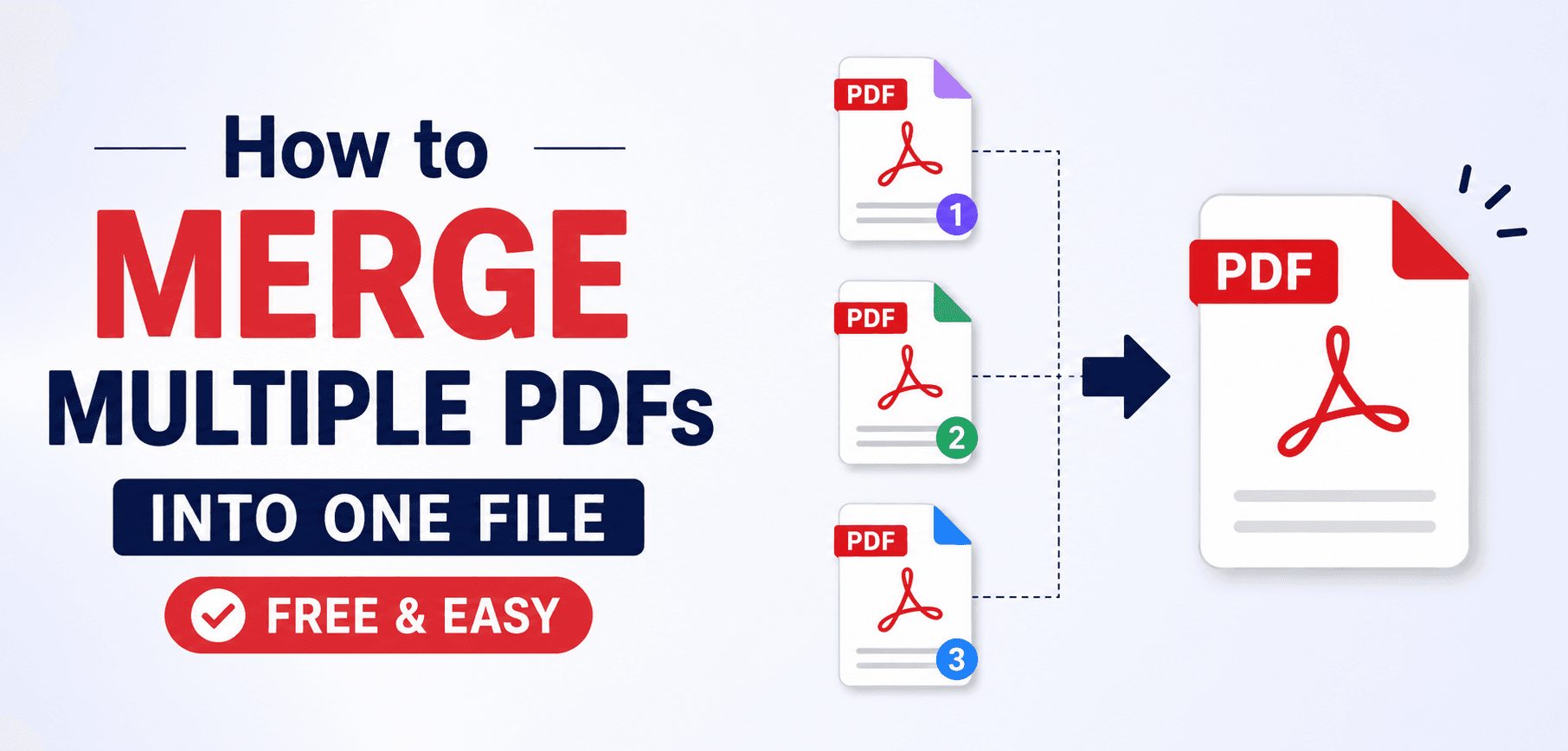
Need to combine several PDF files into one? Whether you are assembling a report, building a portfolio, or organizing scanned documents, our Merge PDF tool makes it instant — no software, no sign-up, completely free.
What you'll learn
- How to seamlessly combine PDFs in your browser without losing quality
- Tips on reordering and organizing your pages before the final merge
- How our local browser processing ensures 100% data privacy
What is Merge PDF?
Merging PDFs is the process of taking two or more separate PDF (Portable Document Format) files and appending them together sequentially to create a single, unified document. It is essentially digital stapling. Instead of emailing someone five different attachments, you merge them into one professional, continuous file that is far easier to manage and present.
Why Merge PDF Files?
Managing a multitude of separate files can be chaotic. If you are applying for a job, you might have your resume, cover letter, and portfolio as three separate documents. If you are handling taxes, you have dozens of receipts. By combining them, you drastically reduce clutter. It also guarantees that the recipient views your documents in the exact order you intend, without missing an attachment.
Common Use Cases
Corporate Reports
Combine monthly financial statements from different departments into a single annual document.
Job Applications
Join your resume, cover letter, and work samples into one professional file that is easy for HR to review.
Scanned Documents
Merge separate scans of pages into a single continuous book or document. If you need to break them up later, you can always split the PDF.
Project Documentation
Combine project plans, requirements, and designs for easy sharing across the team.
Benefits of Merging PDFs
- Improved Organization: Stop digging through folders for that one missing page. One file means one place to look.
- Easier Sharing: Email clients often have limits on the number of attachments. One merged file circumvents this issue. And if the combined file is too large, you can easily compress the PDF to reduce its size.
- Consistent Formatting: PDFs maintain their layout exactly as intended, across all devices.
- Archiving: It is much simpler to archive and backup a single, comprehensive record of an event or project than a scattered mess of loose files.
Features of Our Merge PDF Tool
Our tool is designed with modern web technologies to be the fastest and safest available.
- 100% Client-Side ProcessingYour files are processed directly in your web browser. They are never uploaded to our servers, ensuring absolute privacy.
- No File LimitsMerge as many files as you want. There are no arbitrary paywalls limiting you to 3 files a day.
- Lossless QualityThe tool simply stitches the documents together without degrading image quality or altering the text vectors. If you need to convert it to a word doc later, try our PDF to Word converter.
How to Merge PDF Online
Open the Merge PDF Tool
Navigate to our dedicated Merge PDF tool page. You can do this on desktop or mobile.
Upload Your PDF Files
Click the prominent "Select PDF Files" button, or drag and drop your PDFs directly into the upload area. You can add files from your computer, Google Drive, or Dropbox.
Reorder Your Files (Optional)
Once uploaded, you will see a visual list of your files. Simply drag and drop the grip handle on each file row to change their order. The top file will be the beginning of your new document.
Execute the Merge
Click the orange "Merge PDF" button. Thanks to WebAssembly and local processing, the files will be stitched together almost instantly.
Download Your Document
Click the "Download" button to save your combined, unified PDF file back to your device.
Best Practices
- Check orientations: Ensure all files are oriented correctly (portrait vs landscape) before merging to avoid jarring transitions.
- Batch upload: Select multiple files at once from your file explorer using Ctrl+Click (Windows) or Cmd+Click (Mac) to save time.
- Review your order: Always double check the order before hitting merge. The visual preview makes this easy.
Frequently Asked Questions
Is there a file size limit for merging?
No, there is no hard limit on file size because processing happens locally in your browser. However, very large files may slow down your browser depending on your device RAM.
Can I merge password-protected PDFs?
Yes, but you must know the password to unlock them first before they can be merged. The tool will securely prompt you if a file is locked.
Will merging reduce the quality of my PDFs?
No. The tool combines the files without re-encoding images or stripping data, so the quality remains exactly the same as the original files.
Pro Tips for Managing Large PDFs
When working with extensive documents, a few extra steps can make your life much easier:
- Compress Before or After: If you are merging several high-resolution image PDFs, the final file size might be too large for email. Use a PDF compressor on the final merged document.
- Consistent Formatting: If possible, ensure all source documents have the same page size (e.g., A4 or Letter). While our tool can merge different sizes, uniform sizes look more professional.
- Create a Cover Page: Consider creating a dedicated one-page PDF to serve as your title page, and make sure it is the first file in your list before merging.
Related Articles
Ready to merge your PDFs?
Combine multiple files into one seamless document in seconds, absolutely free and secure.