How to Crop PDF Pages Online: Remove Margins & White Space
Whether you are reading academic papers on a 6-inch e-reader, trying to print a shipping label without wasting ink on blank space, or formatting a document for a presentation, wide margins and excessive white space in PDFs are incredibly frustrating.
Cropping an image is simple: you just delete the pixels outside the boundary. But PDFs are not images; they are complex coordinate-based vector documents. In this comprehensive guide, we will explore the technical nuances of the PDF specification (including the mysterious CropBox and MediaBox), explain why some cropped PDFs revert back to their original size when printed, and show you how to crop your documents flawlessly.
1. The PDF Page Boxes Explained
To understand how PDF cropping works, you must understand how Adobe architected the PDF page boundary system. Unlike a photograph which just has a width and height, a single PDF page actually has up to five different invisible bounding boxes dictating how it should be displayed and printed.
MediaBox
The absolute physical boundaries of the page medium. This is the largest box. If you create an A4 document, the MediaBox defines the 210x297mm paper size.
CropBox
The visible region to which the page should be clipped when displayed on a screen or printed. This is the box that a cropping tool modifies.
TrimBox / BleedBox
Used specifically in professional printing. The TrimBox dictates where the paper cutter will physically slice the page after it comes off the press.
2. The "Hidden Data" Warning
Here is the most critical thing to understand about cropping a PDF: Cropping a PDF does not delete the cropped content; it merely hides it.
When you use a standard tool to crop a PDF, the software simply updates the mathematical coordinates of the CropBox. All the text, images, and vectors that fall outside that new box are still physically present in the file's binary code. A user could open the file in advanced PDF software, reset the CropBox to match the MediaBox, and view everything you thought you cropped out.
If you are cropping a document to hide sensitive information (like cropping out a signature or a Social Security Number), do NOT use a standard cropping tool. You must use a true PDF Redaction tool , or flatten the PDF into a JPG image first.
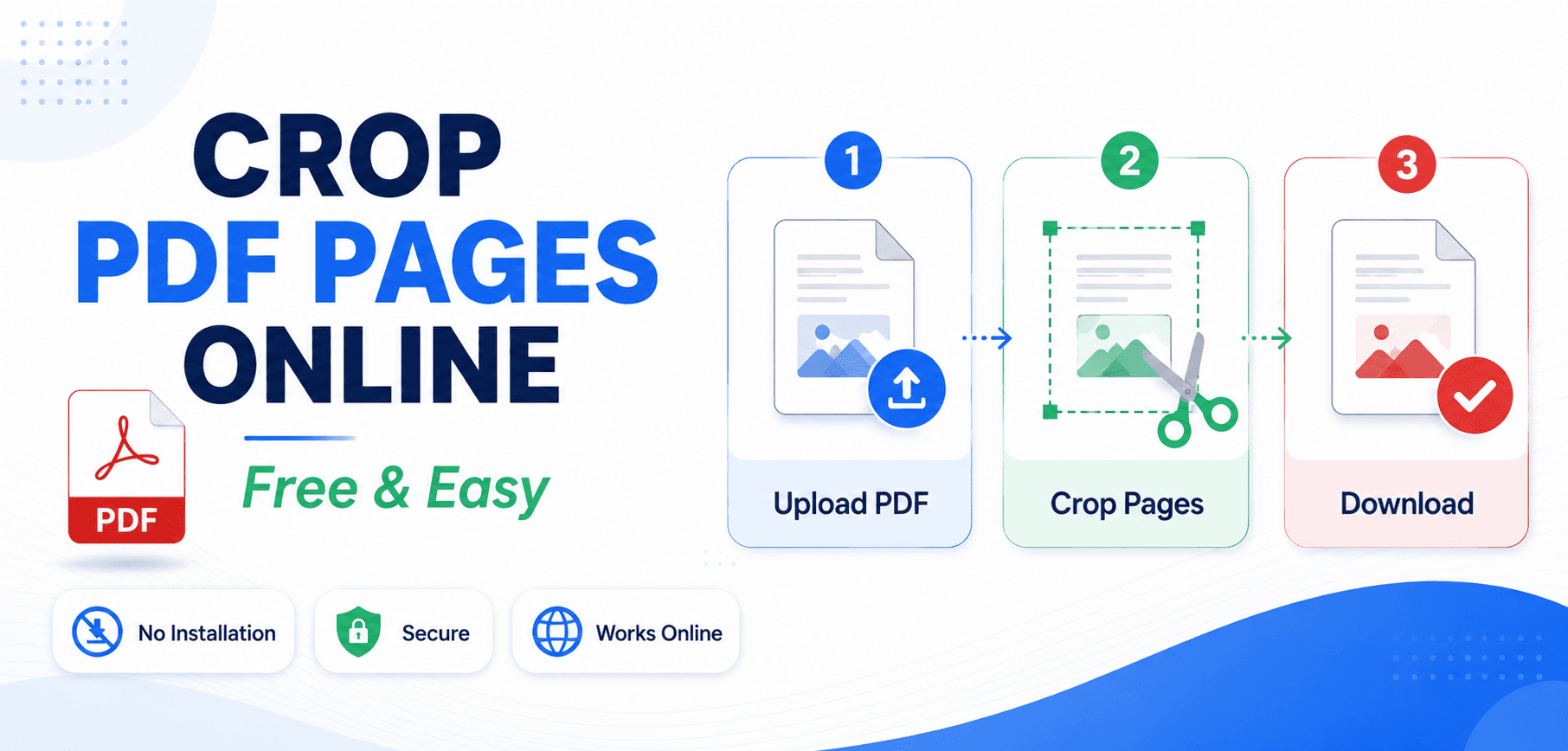
3. How to Crop a PDF (Step-by-Step)
Using the SmartPDFs Pro Visual PDF Cropper, removing vast swathes of white space is a breeze.
Upload the Document
Load your PDF into our secure, browser-based editor. The file is processed locally on your device for absolute privacy.
Draw the Crop Area
Use your mouse to click and drag a bounding box over the exact area you wish to keep. You will see a visual overlay dimming the areas that will be hidden.
Apply to All Pages (Optional)
If you are reading an academic journal where every page has massive 2-inch margins, you don't need to crop them one by one. Check the "Apply to all pages" toggle to apply the exact same coordinate math to the entire document.
Download and View
Hit the Crop button. The tool will rewrite the internal CropBox arrays and generate a brand new, perfectly trimmed PDF file.
4. Common Cropping Use Cases
While general cropping is useful, we've noticed thousands of users rely on cropping for very specific e-commerce workflows. For example, sellers on platforms like Amazon and Flipkart frequently receive A4 PDFs containing a small shipping label at the top.
If you run an e-commerce business, manually drawing a crop box for 500 daily orders is impossible. That is why we built specialized, one-click automated cropping tools that utilize AI algorithms to instantly locate and extract labels:
Frequently Asked Questions
Why does my cropped PDF still print on a full A4 page?
Your printer software may be set to "Fit to Page" or "Center on A4". When you print, ensure your paper size settings match the new dimensions of the cropped PDF, and select "Actual Size" in the print dialog.
Does cropping reduce the PDF file size?
Usually not. Because PDF cropping updates the viewing boundary (CropBox) rather than deleting the actual underlying data, the file size generally remains identical to the original.
Can I crop different pages to different sizes?
Yes. Our visual cropper allows you to scroll through your document and apply unique bounding boxes to individual pages, overriding the batch-crop settings.
How do I un-crop a PDF?
If you have the original file, or if the file was cropped using standard CropBox techniques, advanced PDF editors (like Adobe Acrobat Pro) can reset the CropBox coordinates to match the original MediaBox.
Ready to trim the fat?
Remove wide margins and extract exactly what you need with our visual, drag-and-drop PDF cropper.