How to Compress a PDF Without Losing Quality
Optimize 7 min readLast Updated: Apr 18, 2026By SmartPDFs Pro Team
Introduction
We have all been there. You are trying to email an important document, upload a resume to a job portal, or submit a university assignment, and you are hit with a dreaded error message: "File size too large."
PDFs are incredibly versatile, but they can easily balloon in size, especially when they contain high-resolution images, embedded fonts, or complex graphics. The good news? You can easily reduce the size of your PDF files without turning the text into a blurry mess or pixelating the images. In this comprehensive guide, we will show you exactly how to compress a PDF effectively, why PDFs get so large in the first place, and the best practices for optimal document management.
Key Takeaways
- Understand exactly why PDF files become so large.
- Learn how to use lossless compression to maintain perfect text quality.
- Discover the best free browser-based tools for document compression.
Why Are PDFs So Large?
Before we dive into compressing your files, it is helpful to understand what is making them so heavy in the first place. The Portable Document Format (PDF) was designed to look exactly the same regardless of what device or software is used to open it. To achieve this, PDFs often embed a lot of data.
- High-Resolution Images: If you scan a document at 600 DPI or insert high-quality photos from a modern smartphone or DSLR, the PDF will store those images at their native resolution. A single uncompressed image can be 5-10MB.
- Embedded Fonts: To ensure the document looks identical on a computer that doesn't have your specific fonts installed, PDFs embed the entire font file inside the document.
- Hidden Metadata & Objects: Software like Adobe Illustrator or Microsoft Word often leaves behind hidden metadata, redundant color profiles, and object streams that bloat the file size without changing its appearance.
Proper compression strips out this unnecessary data, optimizes the internal structure (known as "linearization" or "Fast Web View"), and carefully downscales images to an acceptable web resolution (usually 144 DPI or 72 DPI) without touching the actual text vectors.
Common Use Cases for PDF Compression
When do you actually need to compress a document? Here are the most common scenarios where a smaller file size is crucial.
Email Attachments
Gmail and most other email providers enforce a strict 25MB attachment limit. If your PDF is 30MB, it simply won't send.
Government & Job Portals
Many official websites, visa applications, and job boards have incredibly strict upload limits, sometimes as low as 1MB or 2MB.
Mobile Data Conservation
If you are sharing files via WhatsApp or Telegram, a smaller file downloads instantly and saves mobile data for the recipient.
Cloud Storage Management
Cloud storage isn't free. Archiving years of digital receipts or reports? Compressing them first can save gigabytes of paid Drive or Dropbox space.
How to Compress Your PDF Online for Free
You do not need to purchase expensive desktop software to compress your files. SmartPDFs Pro offers a completely free, browser-based compression tool that processes everything locally on your device for maximum privacy.
Open the Compress PDF Tool
Navigate to our dedicated Compress PDF page using any modern web browser (Chrome, Safari, Firefox, Edge).
Upload Your Document
Click the upload area to select a file from your computer, or simply drag and drop the PDF into the browser window. We support files up to 500MB.
Wait for Local Processing
Click "Compress PDF". Our WebAssembly engine will analyze your file, remove unnecessary metadata, and optimize images. Because this happens in your browser, your file is never sent to our servers.
Review the Size Reduction
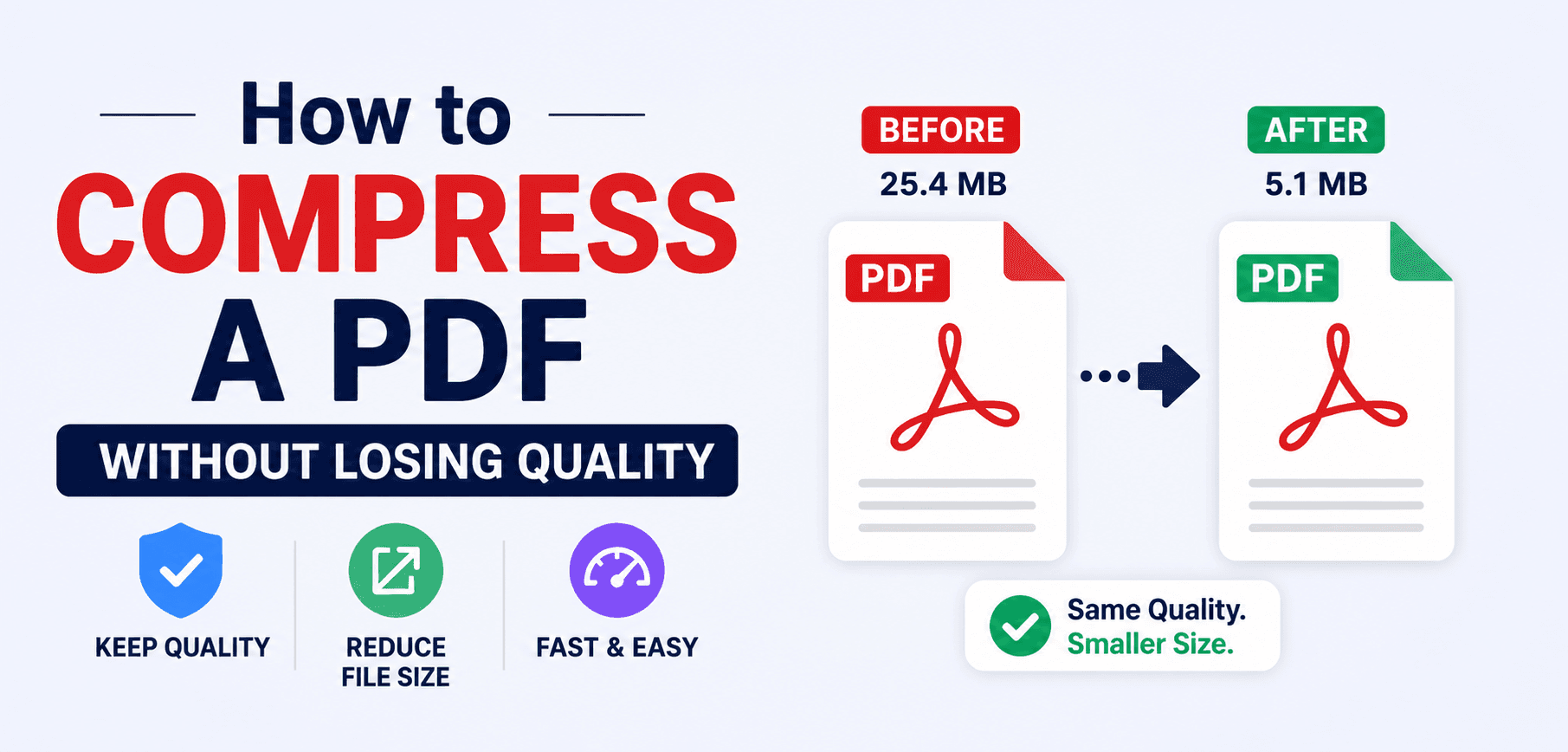
Once finished, the tool will display the exact amount of space saved. You might see a reduction like "Reduced from 15.2MB to 2.1MB (-86%)".
Download Your Optimized PDF
Click "Download" to save the new, smaller file to your device. It is now ready to be emailed or uploaded anywhere.
What Affects Compression Ratios?
Not all PDFs compress equally. If you compress a file and only see a 5% reduction, it isn't necessarily a failure of the tool—it depends entirely on the contents of the original PDF.
Text-Heavy PDFs
Compress very well (60–90% reduction) if they contain hidden metadata or unoptimized fonts that can be stripped.
Scanned Documents
Moderate reduction (30–60%). Scans are essentially large images. Compressing them downscales the DPI to a web-friendly size.
Vector Graphics
Moderate reduction. Vector graphics (like architectural CAD drawings) are already mathematically efficient, so they compress less than raster images.
Already Compressed PDFs
Minimal reduction (0–10%). If your file was exported as "Minimum Size" from Word or Illustrator, there is very little left to optimize.
Features of Our Compression Engine
- Lossless Text QualityWe never rasterize text. Your fonts and vector graphics remain infinitely scalable and perfectly crisp, even at 500% zoom.
- Smart Image DownscalingImages are intelligently compressed using advanced WebP/JPEG algorithms that reduce file size without introducing visible artifacting or blurriness.
- Absolute PrivacyUnlike cloud-based services that upload your sensitive documents to remote servers, our tool runs locally in your browser memory. We have zero access to your files.
If your file consists of multiple separate documents that you need to compress, we highly recommend that you merge the PDFs first, and then run the single resulting file through our compressor for maximum efficiency.
Frequently Asked Questions
Will I lose text quality after compression?
No. Our tool uses true lossless compression for text objects and vectors. Only rasterized elements (like photos or scanned pages) undergo downscaling, so your actual text remains perfectly sharp and searchable.
Is there a maximum file size limit for uploading?
Because processing happens entirely within your web browser's memory, you can technically upload files up to 500MB. However, extremely large files will take longer to process and require a device with sufficient RAM.
Are my confidential documents secure?
Yes, 100% secure. We utilize Client-Side processing via WebAssembly. This means your PDF never leaves your computer. It is never uploaded to an external server, meaning there is zero risk of data interception or retention.
Can I compress a PDF on my iPhone or Android?
Absolutely. Our website is fully responsive. As long as you have a modern mobile browser like Safari or Chrome, the compression engine will run perfectly on your smartphone.
Why did my file size barely change?
If your PDF consists entirely of vector data, or if it was exported from Microsoft Word or Adobe Acrobat with "Minimum Size" already selected, our tool won't be able to compress it much further. We only remove redundant data—we cannot magically shrink essential code.
Advanced PDF Compression Techniques
If you need even more extreme compression than what standard tools provide, consider these pro techniques:
- Flattening Form Fields: Interactive form fields and signature layers add bloat. Printing the PDF to a new PDF file flattens these layers into a single static image, dropping file size considerably.
- Converting to Grayscale: Color data takes up more space than black and white. If your document doesn't strictly need color, converting it via your system's print dialog will shrink it.
- Using Subset Fonts: Instead of embedding an entire font family (like Arial, with all bold/italic and international characters), advanced editors allow you to embed only a "subset" of the exact characters used in your document.
Related Articles
Ready to shrink your PDFs?
Reduce file sizes by up to 80% while preserving pristine quality. 100% free and instantly secure.